

Install a RADIUS server
Install the RADTik FreeRADIUS server on a fresh Ubuntu VPS with one command, then connect it to the panel and your MikroTik routers.
The RADIUS server is installed once, by hand, with one command. After that the panel connects to it and manages it for you.
What you need
- A fresh Ubuntu 22.04 server (VPS) with a public IP address and root access. 1 CPU and 1 GB of memory are enough for most hotspots.
- These ports open in the server's firewall:
- 1812/udp and 1813/udp from your routers (logins and accounting);
- 5000/tcp from the panel (the API the panel uses to send vouchers);
- 22/tcp (SSH) from the panel.
- The server must be able to reach the panel's web address.
The Setup Guide in the panel (Network > RADIUS Servers > Setup Guide) shows the exact command for your panel, with the right version and address filled in.
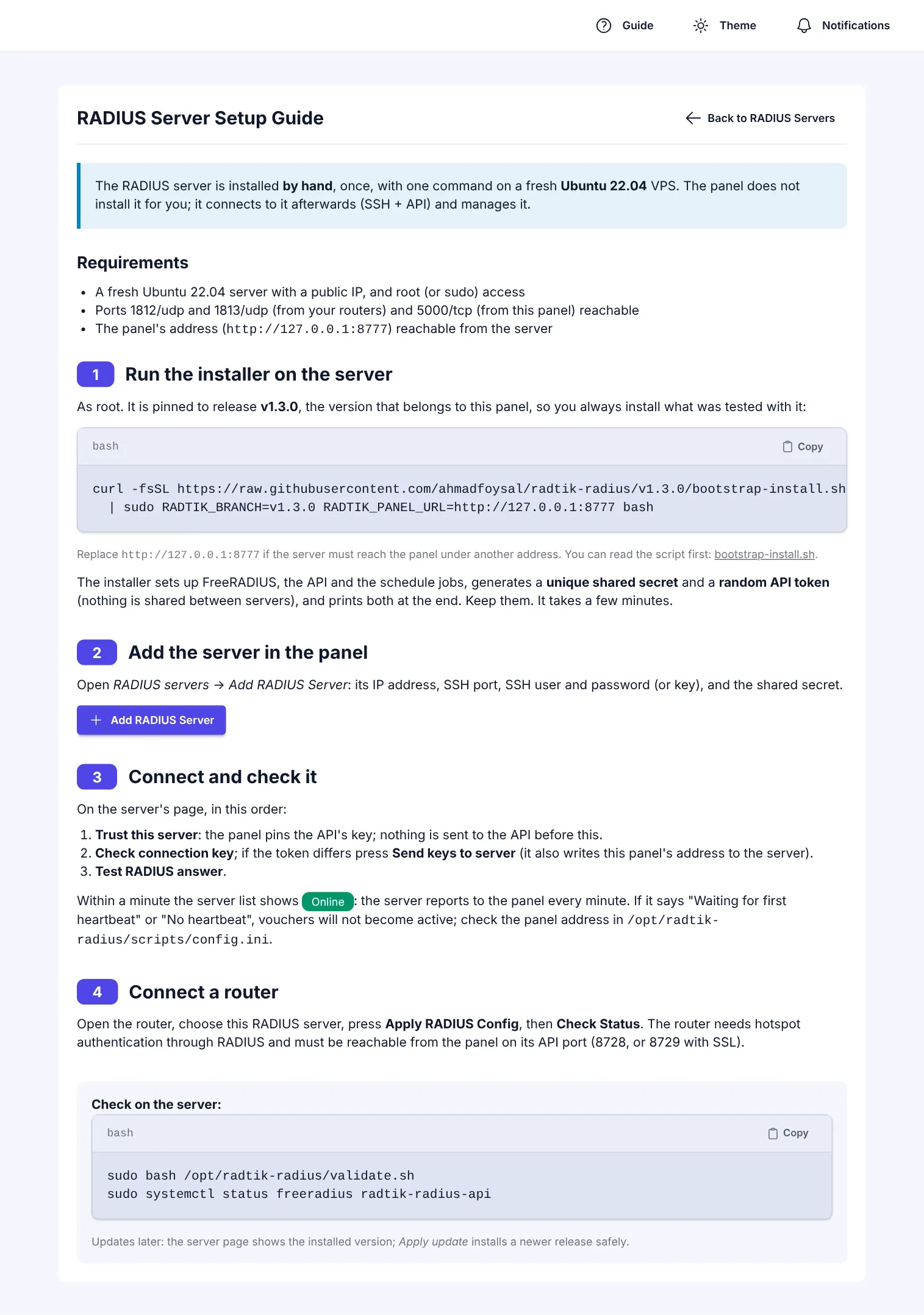
1. Run the installer
Log in to the server as root and paste the command from the Setup Guide. It looks like this:
curl -fsSL https://raw.githubusercontent.com/ahmadfoysal/radtik-radius/vX.Y.Z/bootstrap-install.sh \
  | sudo RADTIK_BRANCH=vX.Y.Z RADTIK_PANEL_URL=https://your-panel-address bash
The installer sets up FreeRADIUS, the API and the scheduled jobs. It also creates its own temporary keys and prints them at the end; you do not need them, because the panel sends its own keys to the server when you connect it (next page). It takes a few minutes.
Important: Never post the shared secret or the API token in a chat or a screenshot.
2. Add the server in the panel
Open Network > RADIUS Servers > Add RADIUS Server and fill in:
| Field | What to enter |
|---|---|
| Host / IP Address | The server's public IP address. |
| Description | Optional, for example "Dhaka VPS". |
| SSH Username / Port / Password | How the panel logs in to manage the server (usually root, port 22). |
| Authentication / Accounting Port | Leave the defaults (1812 / 1813) unless you changed them. |
| Timeout / Retries | Leave the defaults. |
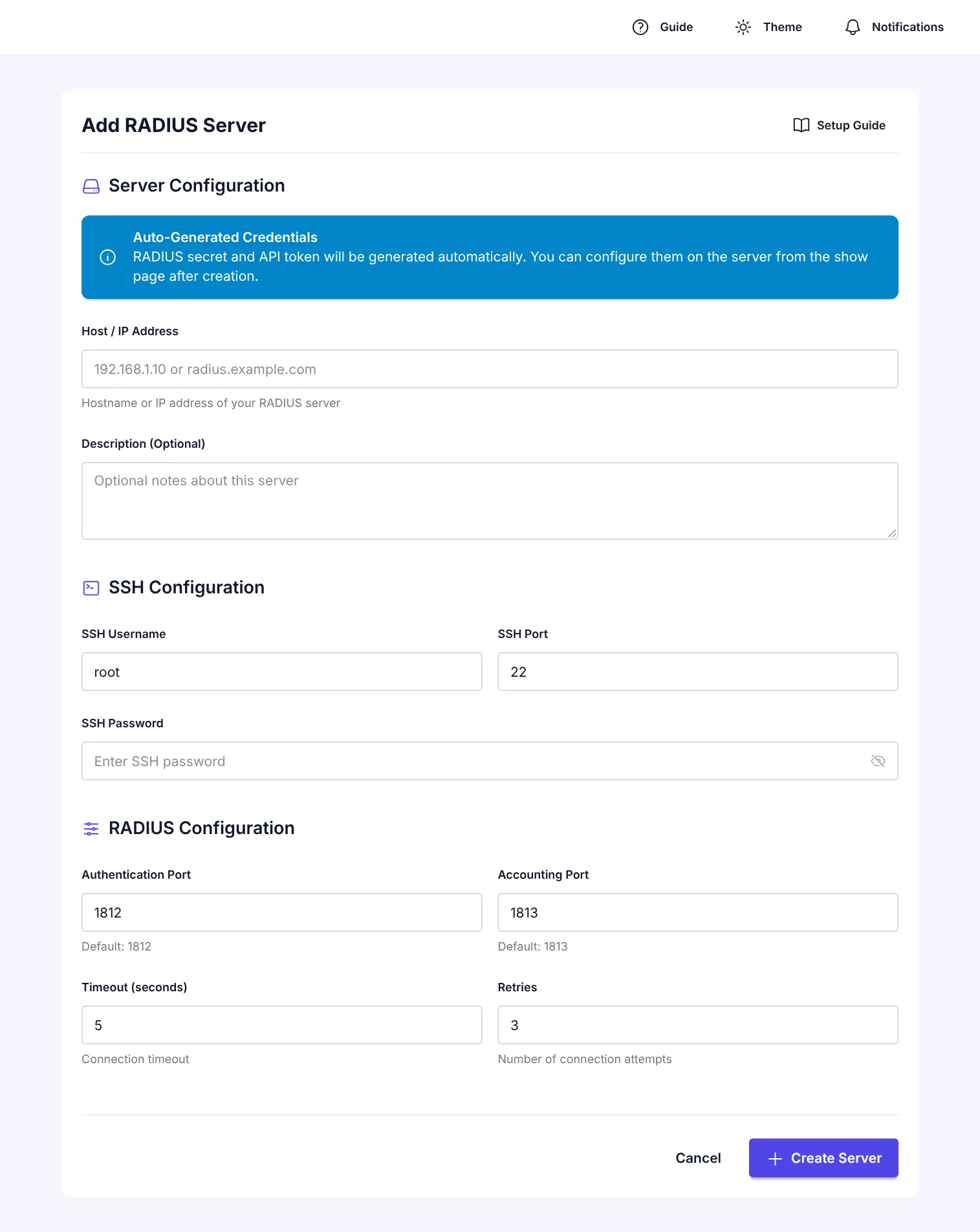
Press Create Server. Then connect it: see Connect the server.
Edit a server
Edit on the server page changes the address, SSH login and ports. The shared secret and the API token are not shown there: leave both fields empty to keep them, or type a new value only when the server uses a new one. To read the current keys, use Reveal on the server's Connection tab. If the server was rebuilt (new operating system), also reset its saved SSH key on the Edit page, otherwise the panel refuses to connect for your safety.