

Print vouchers and QR login
Print WiFi vouchers in ten designs, from small cards to 58/80 mm receipt printers, and let customers log in by scanning a QR code.
Print a batch
- Open Vouchers > Print & Bulk Actions.
- Choose the router, the batch you just generated and the status Inactive (Unused).
- Press Print cards.
- On the print page, choose a Design if you want another one than the router's, then press Print / Save PDF.
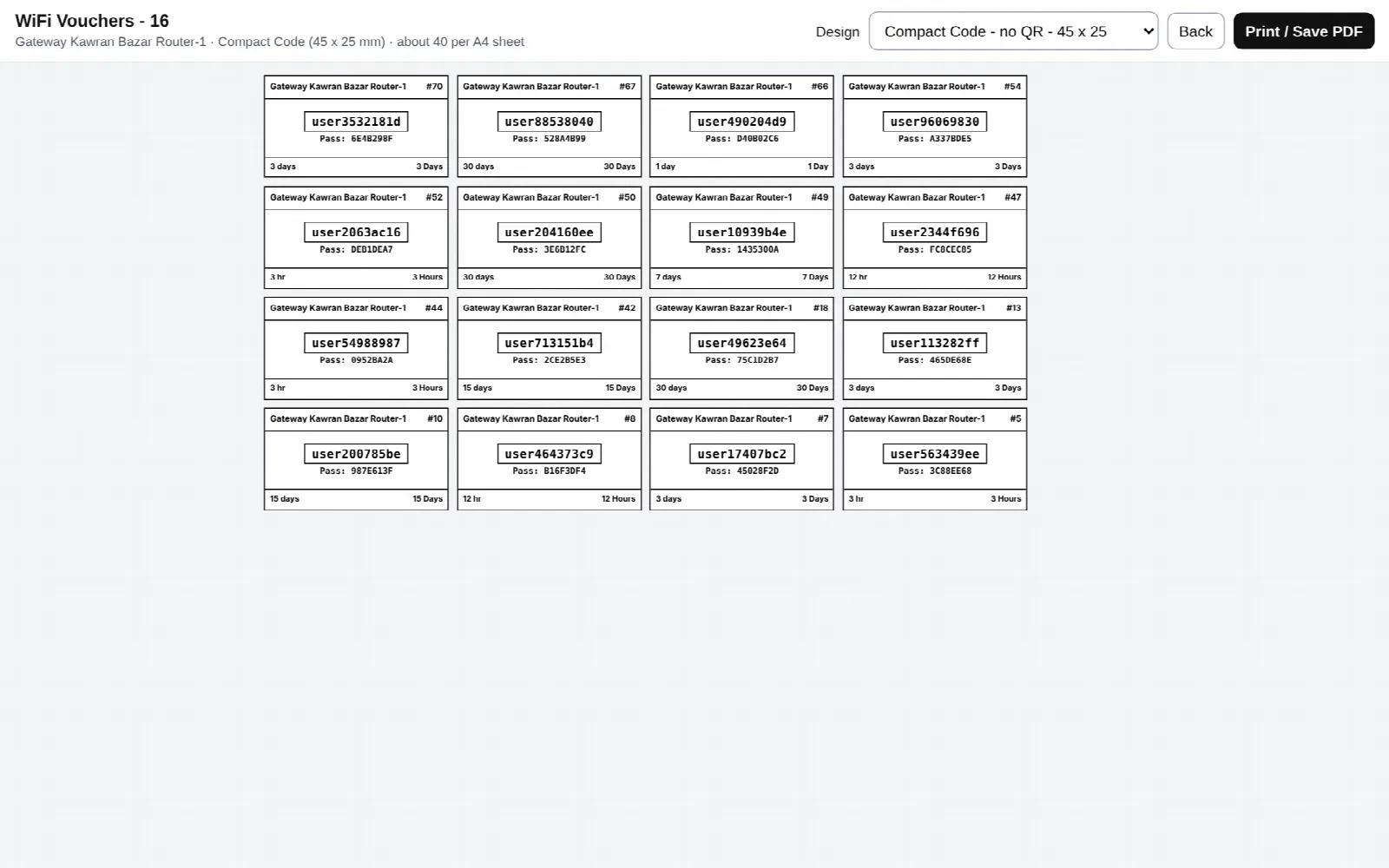
To print one voucher, open it and press Print.
Tip: In the print window choose paper size A4 (or your receipt printer), margins "None" or "Minimum", and scale 100%. The cards are drawn in real millimetres.
The 10 designs
Vouchers > Voucher Designs shows all designs with sample data.
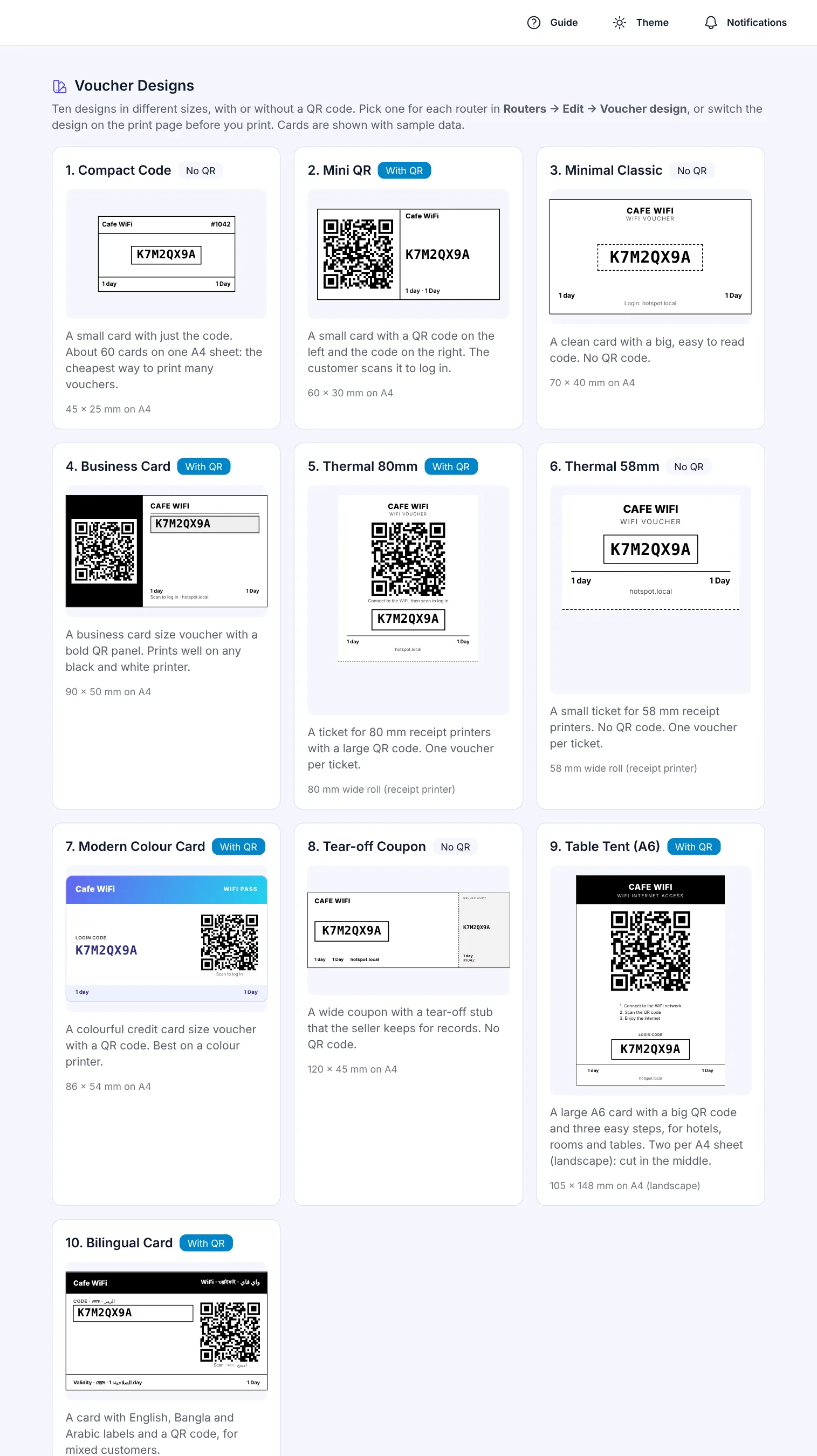
| # | Design | Size | Per A4 sheet | QR code |
|---|---|---|---|---|
| 1 | Classic Grid | 45 x 22 mm | 48 (landscape) | No |
| 2 | Code Strip | 37 x 26 mm | 50 | No |
| 3 | QR Side | 46 x 26 mm | 40 | Yes |
| 4 | QR Top | 37 x 33 mm | 40 | Yes |
| 5 | Classic QR | 45 x 26 mm | 42 (landscape) | Yes |
| 6 | Thermal 58mm QR | 58 mm receipt printer | one per ticket | Yes |
| 7 | Thermal 58mm | 58 mm receipt printer | one per ticket | No |
| 8 | Thermal 80mm QR | 80 mm receipt printer | one per ticket | Yes |
| 9 | Colour Card | 86 x 54 mm | 10 | Yes |
| 10 | Bilingual Card (English, Bangla, Arabic) | 85 x 50 mm | 10 | Yes |
The small cards show the router name, the card number on the sheet, the code, the validity (for example 30d) and the price.
Choose the default design for a router under Routers > Edit > Voucher Design.
The price of the hotspot profile is printed on the cards, also when a reseller prints them.
How QR code login works
The QR code on a voucher holds the hotspot login address with the code and password, for example http://hotspot.local/login?username=CODE&password=PASS.
- The customer connects to your WiFi.
- They scan the QR code with the phone camera and open the link.
- The hotspot logs them in. No typing.
For this to work:
- the router's Login Address must be set (Routers > Edit). Without it, QR designs print without the QR code and the print page warns you;
- the hotspot must allow HTTP PAP login (see Prepare your MikroTik);
- the customer must be connected to your WiFi when scanning (with mobile data off if the phone switches networks).
The QR code is drawn by RADTik itself: voucher codes are never sent to an outside QR service.