

Routers and live traffic
The router list, the router page, live traffic per interface, and editing or removing a router.
The router list
Network > Routers lists every router with its zone, its vouchers (unused and expired), how many are in use right now, its RADIUS server and its address. Click a column title to sort. The ... menu on each row opens the router, edits it or tests the connection. Deleting is on the router page.
A router that does not have its RADIUS settings yet shows RADIUS not set (or RADIUS failed, with the reason, when the last try did not work). Apply RADIUS Config (N) at the top sets up all of them at once, in the background: each shows Setting up meanwhile, and a notice tells you how many worked. The list reads this from the panel's own records, so it opens fast without asking every router. A router whose RADIUS server got a new address or key shows RADIUS not set again. Routers that are set show nothing.
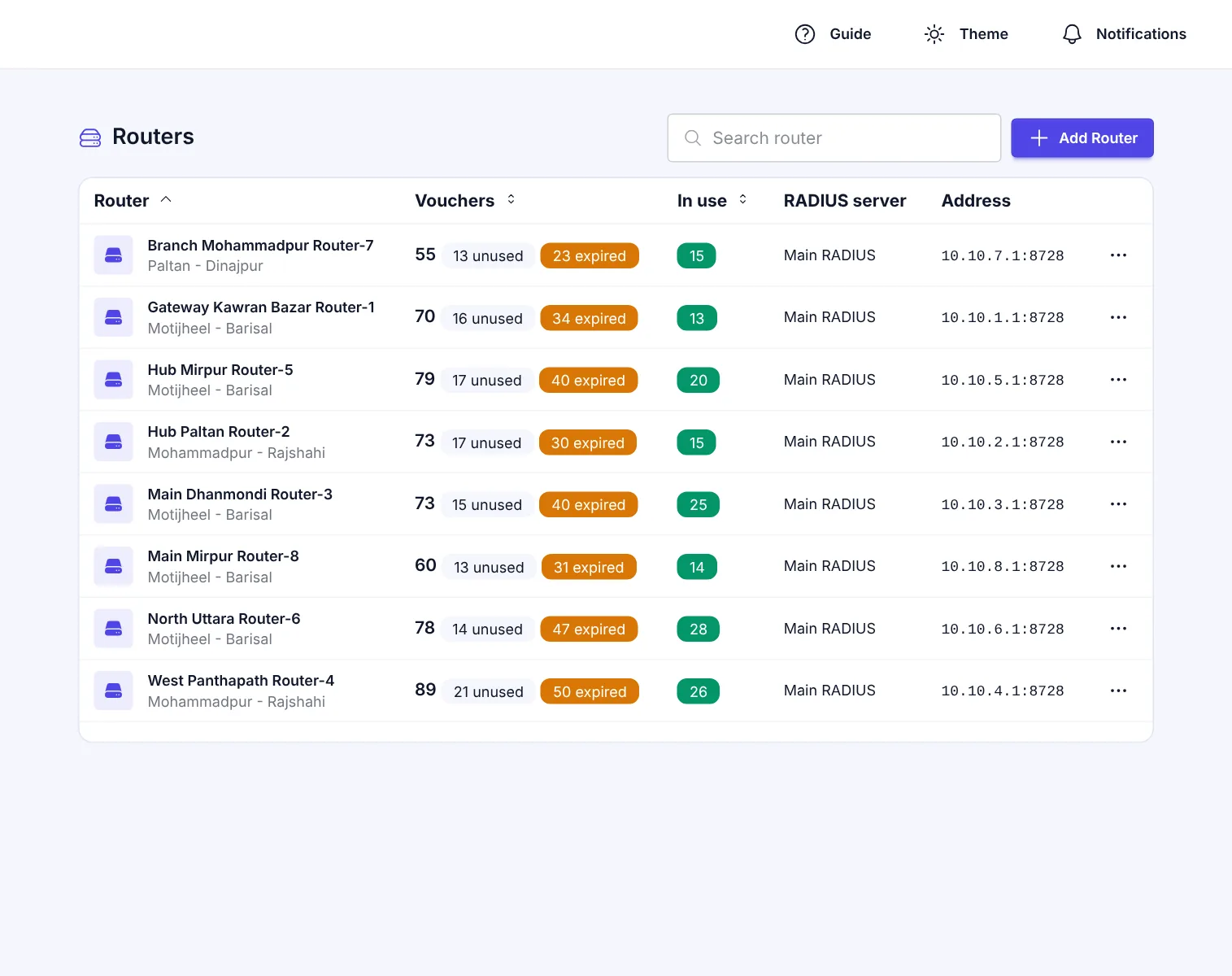
On a phone each router is shown as a card.
The router page
Open a router to see:
- its address, zone, login address and NAS identifier;
- the router's CPU load, memory, disk, uptime and clock;
- hotspot users, activations and sales today and this week;
- Live traffic (below);
- RADIUS Configuration Status with Check Status and Apply RADIUS Config, and the PPPoE users switch (below);
- a Danger Zone to delete the router.
Live traffic
The live traffic card shows the speed of one interface, measured by the router itself every 3 seconds.
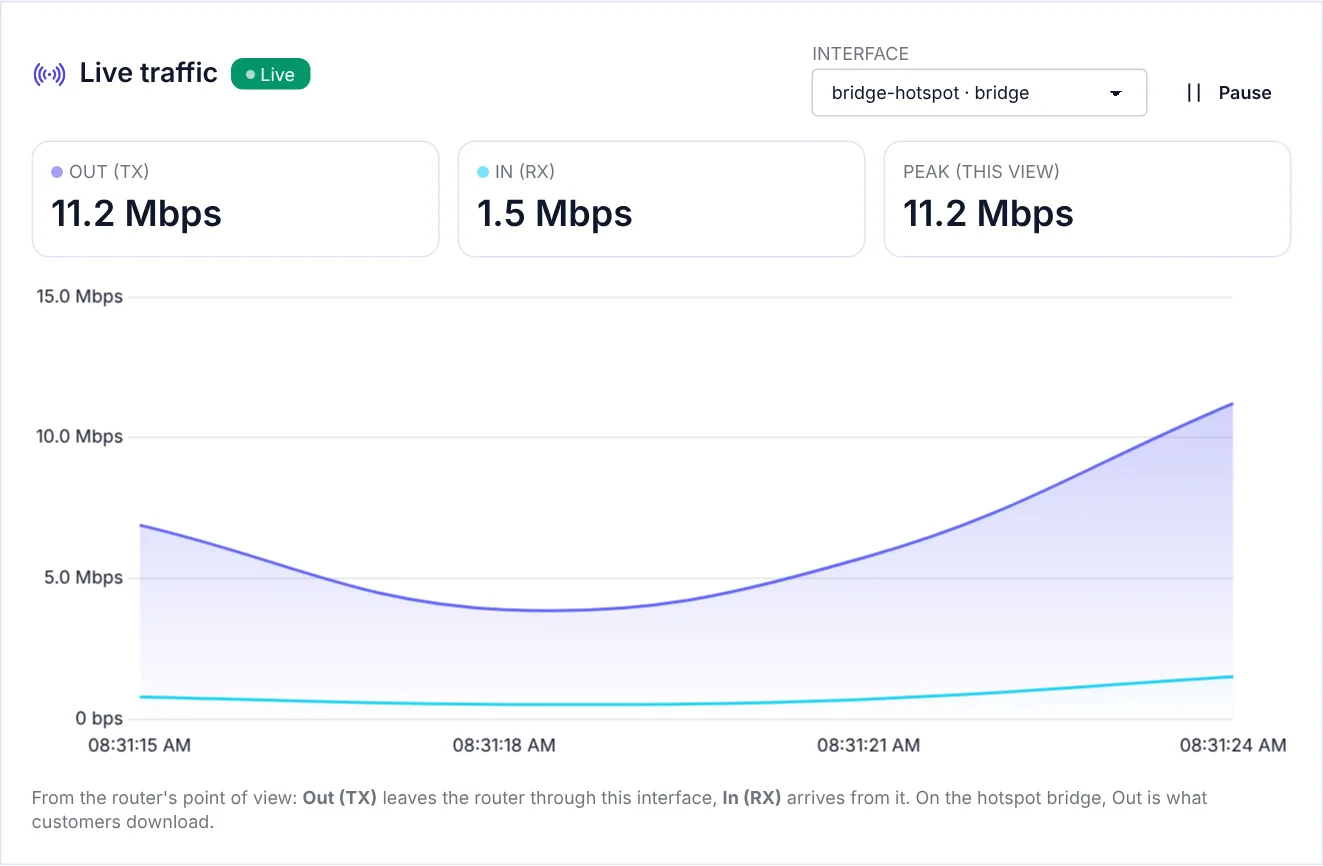
- Choose the Interface in the list. Running interfaces come first; the hotspot bridge is chosen by default.
- Out (TX) leaves the router through this interface, In (RX) arrives from it. On the hotspot bridge, Out is what your customers download.
- Peak is the highest speed seen while you watch.
- Pause stops the updates. The graph also pauses while it is not on screen.
PPPoE users
PPPoE is optional. In RADIUS Configuration Status, Switch on next to PPPoE users lets you manage the router's PPPoE customers in RADTik. Then press Apply RADIUS Config: the router gets a separate RADIUS entry for the PPP service and asks RADIUS for PPP logins. The hotspot settings are not changed, and nothing changes for a router where PPPoE stays off. Check Status then checks the PPP part too. See Set up PPPoE users.
Edit a router
Edit changes the connection details, the voucher design, the ISP cost, the zone and the logo. Leave the password empty to keep the current one.
Delete a router
Delete Router in the Danger Zone removes the router from the panel (nothing is changed on the router itself). Type the router name in capital letters, as shown in the window, to confirm. This cannot be undone.
A router cannot be deleted while it still has vouchers or PPP users, or is assigned to a reseller. A router with PPP users can also not be moved to another RADIUS server. Delete its vouchers first (Vouchers > Print & Bulk Actions) and remove it from your resellers (Team > Resellers > Reseller Access, tab Routers).