

Manage vouchers
Find vouchers, understand their status, and disable, enable, reset or delete them one by one or in bulk.
Open Vouchers > All Vouchers.
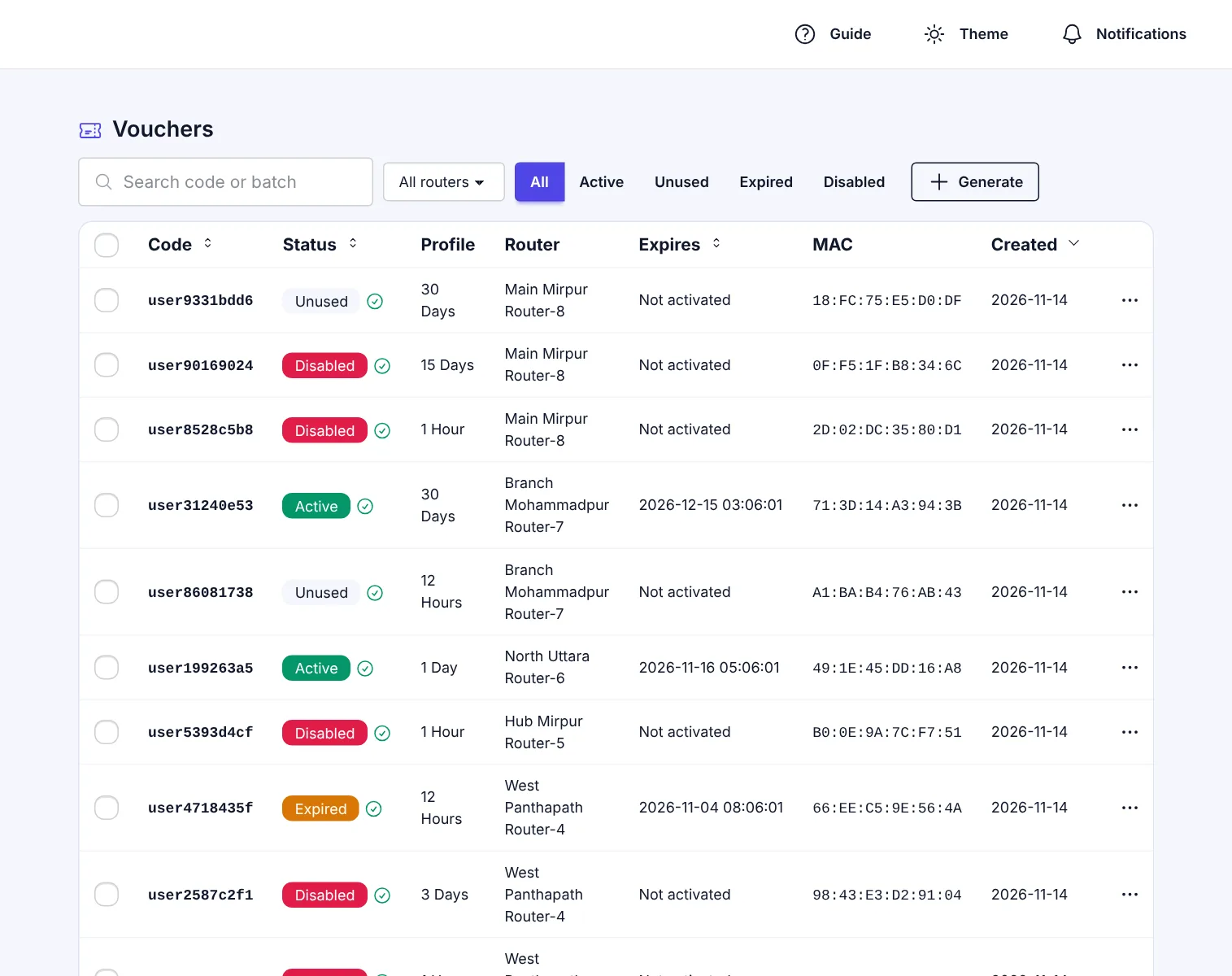
Voucher status
| Status | Meaning |
|---|---|
| Unused | Generated, never used. Its time has not started. |
| Active | Logged in at least once. The time is running until its end date. |
| Expired | The time is over. Expired vouchers are removed automatically within a few minutes (they appear as "Expired (removed)" in reports). |
| Disabled | Switched off by you. Nobody can log in with it until you enable it again. |
Find a voucher
Type part of a code or a batch in the search box. Filter by router, and by status with the buttons All, Active, Unused, Expired, Disabled. Click a column title to sort.
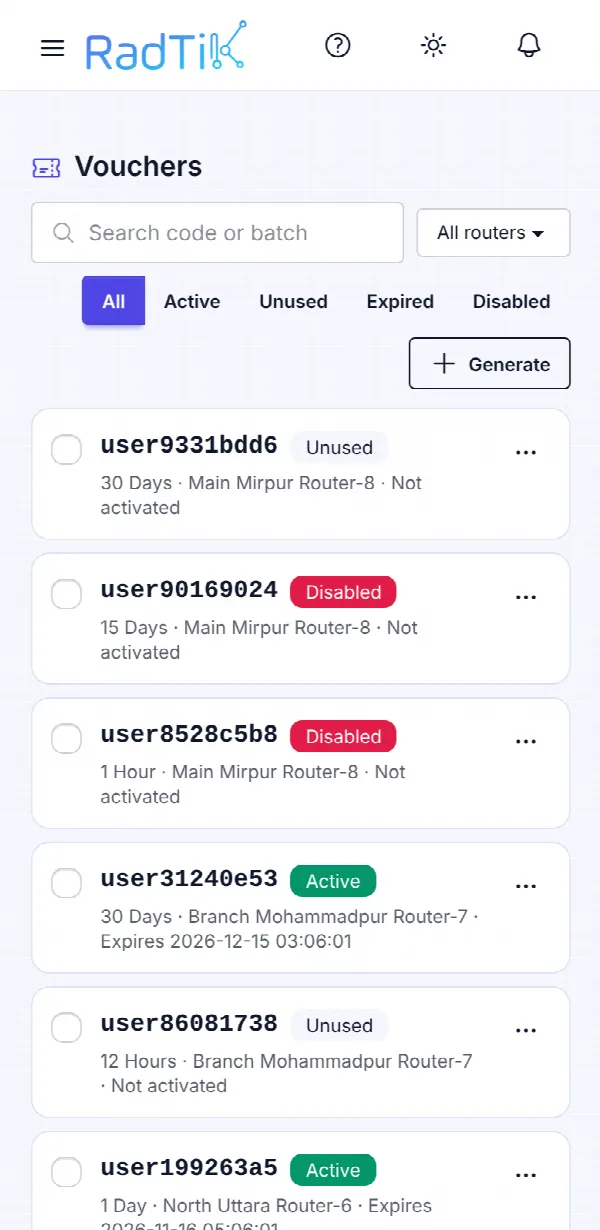
On a phone, each voucher is a card with its status and router.
Actions on one voucher
The ... menu on each row offers:
- Details: the voucher page. To find out why a code does not log in, use the Login checker.
- Copy code.
- Disable / Enable: switches the voucher off or on, on the RADIUS server too. A disabled voucher cannot log in until you enable it again.
- Reset session & MAC: disconnects the voucher everywhere and forgets the device it was locked to. Use it when a customer changed phones.
- Delete: removes the voucher. It cannot be used any more.
Actions on many vouchers
Tick the vouchers (or Select all on this page), then use Disable, Enable or Delete above the list.
Print & Bulk Actions
Vouchers > Print & Bulk Actions works on whole groups. Choose a router, then optionally a batch and a status. The page shows how many vouchers match, with a preview of the first 100.
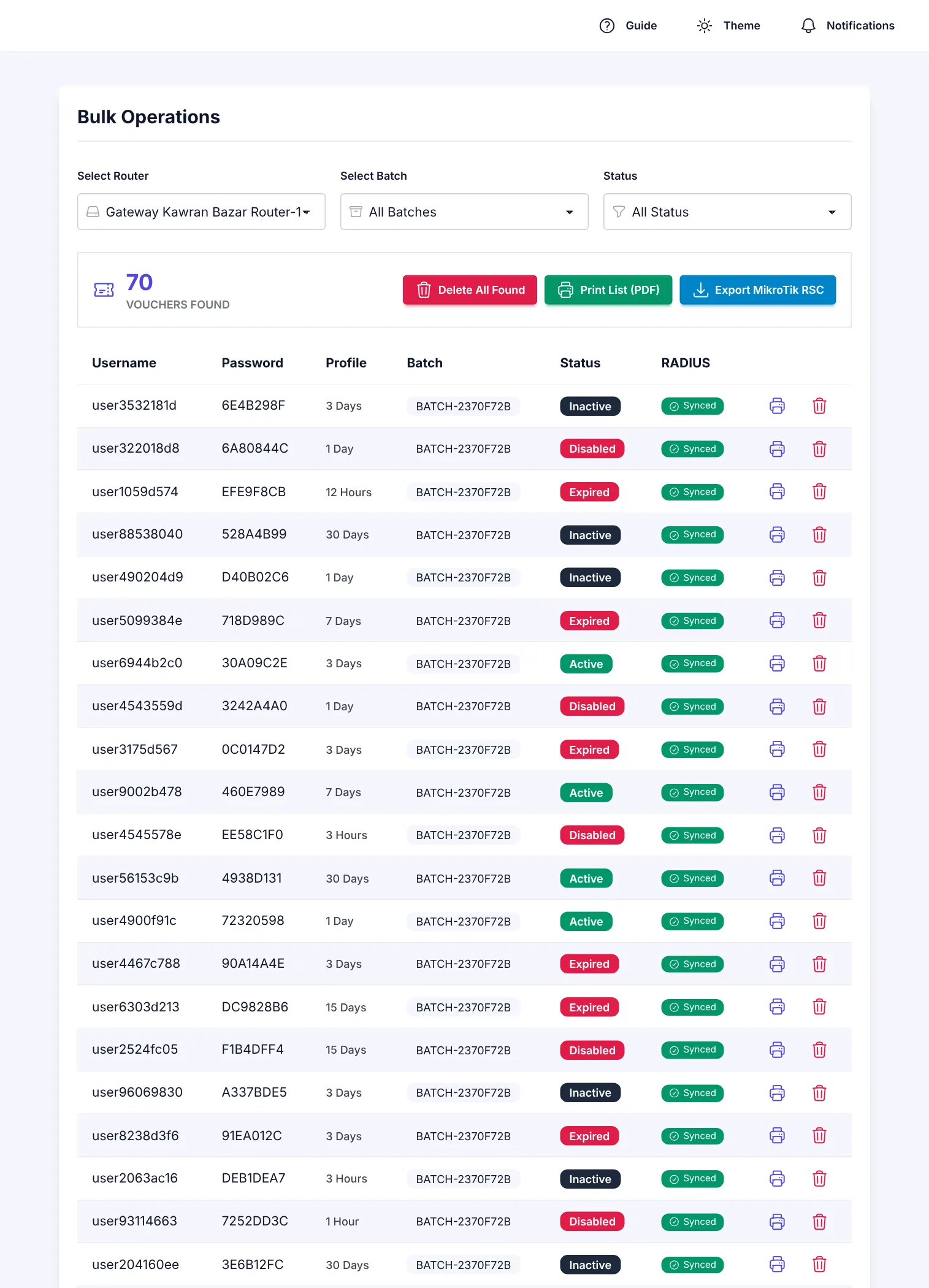
- Print cards opens the print page for all vouchers found. See Print vouchers.
- Export for MikroTik (.rsc) downloads a RouterOS script with the vouchers.
- Delete all found deletes every voucher found (not only the 100 in the preview).
Important: Deleting cannot be undone. A deleted code cannot be generated again until the RADIUS server has removed it (usually within a minute).